Blog
A Hands-On Guide to Looker Data Apps: Looker’s New AI-Assisted Way of Building Dashboards
Reading time.
7 min
Wrtitten by
Michael Murillo
Business Intelligence
Artificial Intelligence

A while ago, Looker released the extension framework. If you haven’t used it, it lets you build your own apps inside Looker with JavaScript and React. Think custom visualizations, navigation panels, buttons, interactions, and pretty much anything you can code, all living right next to your data. Powerful? Absolutely. Quick? Meh, let’s just say it was never the “I’ll have it ready by lunch” option.
But now Looker has Looker Data Apps in preview.
It takes the extension framework and adds AI code assist on top, so you can describe the dashboard you want and get something responsive and good-looking without hand-building every tile. At Astrafy we like to get our hands on these features the moment they show up (some people collect sneakers, we collect preview flags), so naturally I had to take it for a spin.
Of course, it’s not as plug-and-play as it sounds. How good your app turns out depends heavily on two things: how well your semantic model is documented in Looker (descriptions, labels, the boring stuff that suddenly isn’t boring anymore) and the quality of your data. The AI can’t explain a field called metric_final_v2_USE_THIS any better than you can. So a heads up before we start: if you plan to use this, point it at a well-documented, working model.
The purpose of this article is to walk you through creating your first data app: what you need, how to set it up, and how to go from prompt to published dashboard. So let’s get into it.
Prerequisites
1. A Looker instance with the extension framework and the inline_extensions feature enabled, running at least version 26.18. If the feature is off, ask your Looker admin to turn it on. The installer checks this for you, so you’ll find out fast.
2. Looker API keys (client ID and client secret). If you don’t know how to get them, click your user icon in the top right and select Account.

Scroll down until you see API Keys and click Manage. From there you can create a new API key or use an existing one. (Admins can also do this from Admin → Users → Edit API keys.)
The user behind those keys needs a role with the save_content, save_dashboards and access_data permissions, because publishing a data app creates a real dashboard in your instance.
3. A target folder ID, meaning the folder id where your app will be published. For example, in the url https://your-instance.looker.com/folders/123, your folder id is the 123
4. Access to a coding agent (Claude Code, Cursor, Antigravity, etc.).
5. Python 3.9+ on macOS or Linux.
6. A branding or styling file for your dashboard (optional, but trust me on this one).
Notice what’s not on the list: a LookML project. The agent discovers the models straight from your instance through the API, so you don’t need to point it at a repo necessarily.
Step 1 — Installation
Open your terminal and run:
Press enter or click to view image in full size

Installation process
You’ll be asked a few questions:
Install directory: the local path for your Data Apps project, or just press Enter to accept the default (~/looker-data-apps).
Looker instance URL: your Looker instance URL.
Looker API client_id: your client ID.
Looker API client_secret: your client secret.
Looker folder ID: the folder ID from the prerequisites (just the number).
Behind the scenes, the installer links the data-app-creator skill into your coding agent, saves your credentials to data-apps-config.json, and runs a quick test publish to make sure your instance is ready. One tip: that config file holds your client secret, so if you ever put the folder under git, keep the file out of it.
That’s it for setup. Open your coding agent in ~/looker-data-apps and you’re ready to build.
Step 2 — Branding (optional, but do it)
At Astrafy, our marketing team keeps a very detailed brand guide in Notion with colors and hex codes, fonts, logos, etc. For this demo, I connected the coding agent to the Notion MCP and asked it to turn that guide into an .md file aimed at dashboarding. I reference that file in the prompt in the next step.
I highly encourage you to build your own. You can reuse it for every data app you build afterwards, and it’s always nice to deliver data products that actually look like your company made them. Your marketing team will notice. They always notice.
A quick word on validation
Before we write the prompt, a small disclaimer: whenever I work locally with Looker, I always have the Looker MCP and the Looker extension set up. The MCP lets your coding agent check questions against your model, and the extension lets you validate your LookML locally before pushing and validating it in the UI. It’s completely optional, but I highly recommend it whenever you work with Looker locally.
More information about these two tools:
Looker Code extension (for your IDE)
Step 3 — The prompt
For my use case, I wanted a dashboard for our marketing team, built on top of a marketing model I already had. Here’s the prompt I gave the coding agent:
Build a responsive Looker data app on top of our marketing analytics LookML model and the marketing funnel explore. Use our brand guidelines file (path here) as the visual theme so the app looks like it belongs to us, not like a default dashboard.
Put everything on a single tab so the whole story fits on one page. It should include:
A funnel chart that shows how prospects move from Leads → MQLs → SQLs → Qualified Opportunities → Customers (Closed Won), so we can see where people drop off.
A bar chart of leads by conversion event (for example webinar sign-ups, demo requests, content downloads) to show which actions bring in the most leads.
A revenue KPI showing the revenue that came from marketing-sourced leads.
KPI cards for MQLs and conversion rate.
Any other KPIs you think a marketing team would want to see at a glance, such as lead-to-customer rate, average deal size, or cost per lead if the data supports it.
Keep the layout clean and easy to scan on desktop and mobile. Put the headline numbers at the top and the charts below them.
Notice that I’m not telling it which fields to use. That’s the whole point of having a well-documented model: the agent figures it out from your descriptions. (Remember metric_final_v2_USE_THIS? Yeah.)
Step 4 — Preview locally
Before publishing anything, you can ask your agent to open a preview on your local machine (http://localhost:8765). It renders the app with mock data, so you can check the layout and iterate without touching your Looker instance. You can also run python3 preview-server/serve.py to open a gallery of every app you’ve built.
Here’s a preview of my app:
Press enter or click to view image in full size
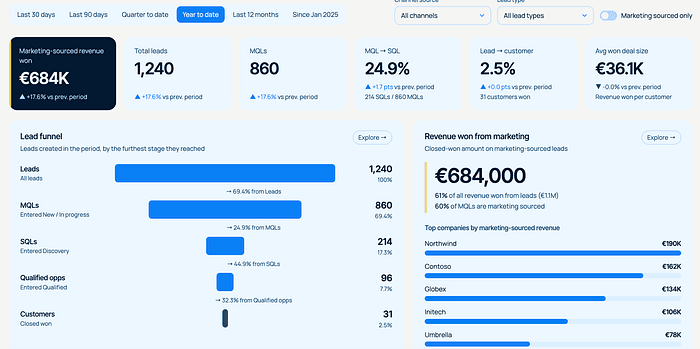
Note: these numbers are fake. I like my job, so no, I’m not sharing our real pipeline on Medium.
The leads-by-conversion-event chart sits further down the page. This screenshot only shows the top, because the funnel deserved the spotlight.
Step 5 — Publish
Once you’re happy with it, tell your agent to publish. It won’t do it on its own (by design), because publishing creates real content in your instance. Under the hood it runs publish-data-app.py, which creates a dashboard in your target folder with your app inside it, full screen. Open the folder in Looker and there it is.
One gotcha: when you update an app later, make sure it re-publishes with — dashboard-id <id> (the agent gets the ID from the first publish). Otherwise every publish creates a brand-new dashboard, and your folder starts looking like my Downloads folder.
Stuff to try out
Replicate dashboards from images. Use the Figma MCP to design a dashboard mockup, get business to approve it, then hand it to your agent to rebuild as a data app.
Interactive data tables.
Experiment with environment variables — for example, to display who is viewing the dashboard if OAuth is enabled.
Ask for suggestions based on your model, and validate the numbers with the Looker MCP.
Data Apps are still in preview, so expect some rough edges. But going from a paragraph to a branded, responsive dashboard in some minutes is something I wouldn’t have believed a couple of years ago. At Astrafy we’ll keep pushing it to see where it breaks (it’s kind of our thing), and we will share what we find.
Happy coding! :)
Written by

Michael Murillo
Looker & BI Engineer

 Download